Lambda function xoá dữ liệu
Chúng ta sẽ tạo một Lambda function xoá toàn bộ item có partition key và sort key được chỉ định trong bảng của DynamoDB. Và xoá cả tệp ảnh trong S3 bucket:
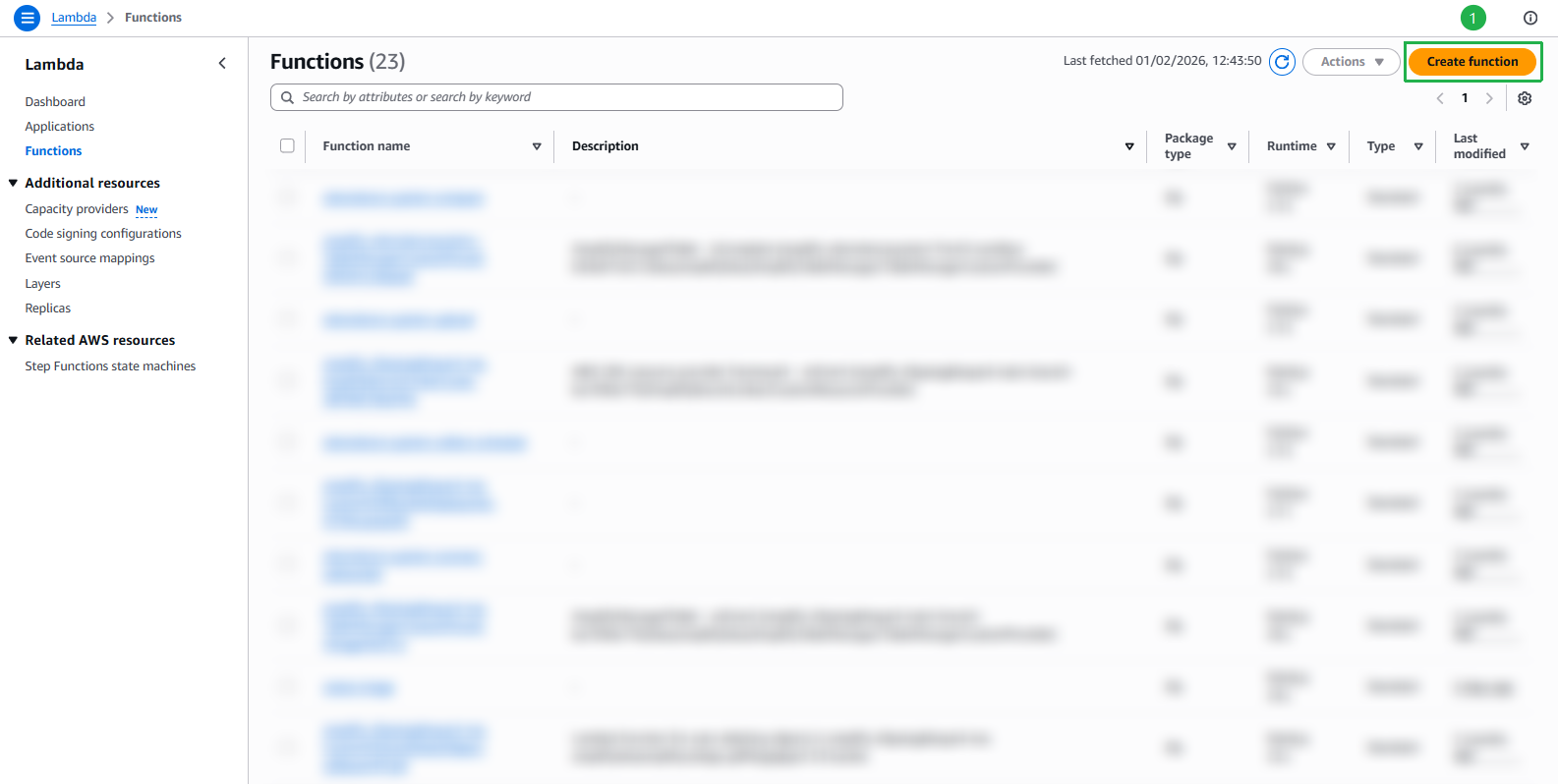
Mở bảng điều khiển của AWS Lambda, ấn nút Create function
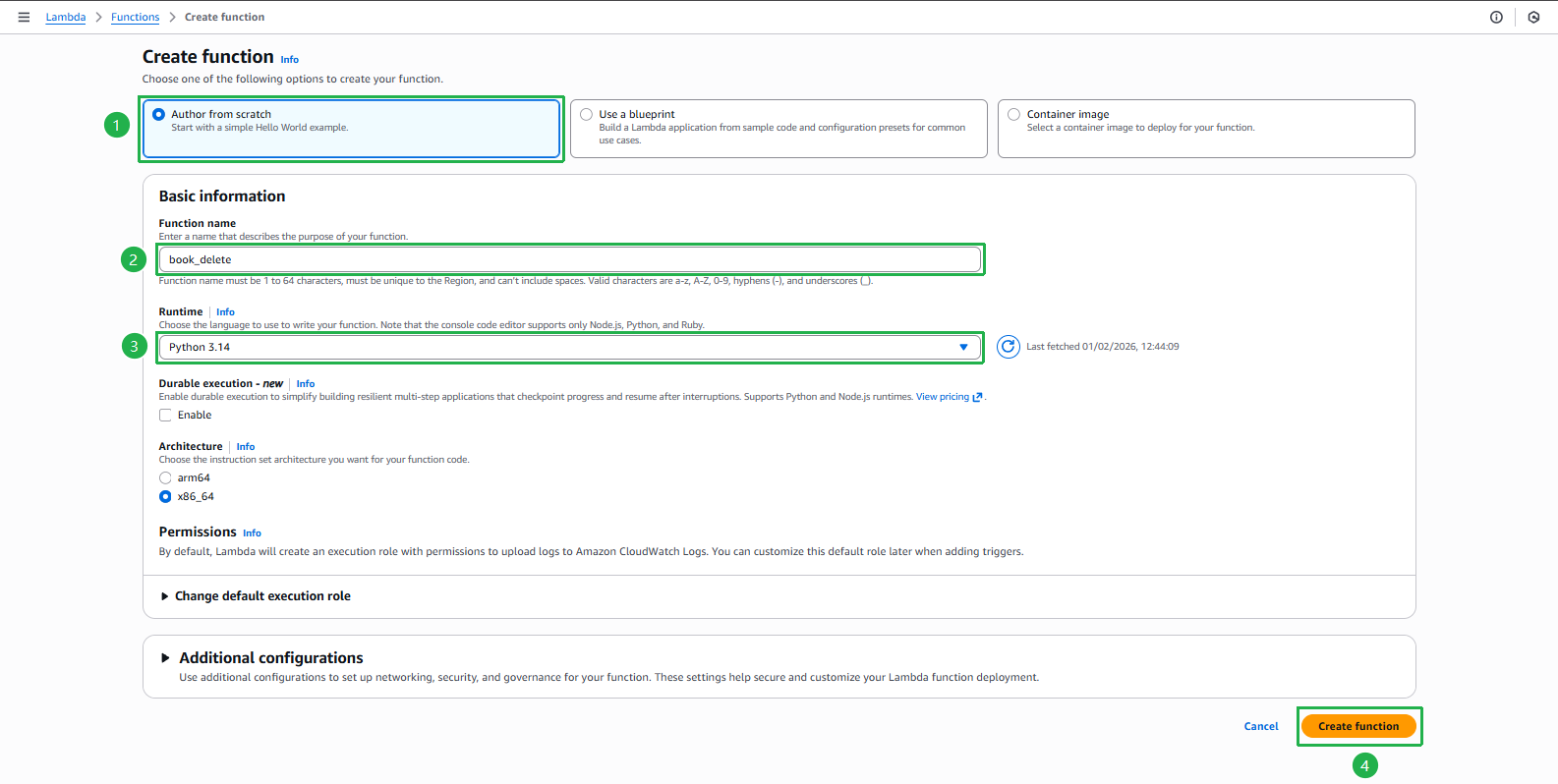
Nhập tên cho function, ví dụ: book_delete
- Chọn Python 3.12 cho mục Runtime
- Ấn nút Create function
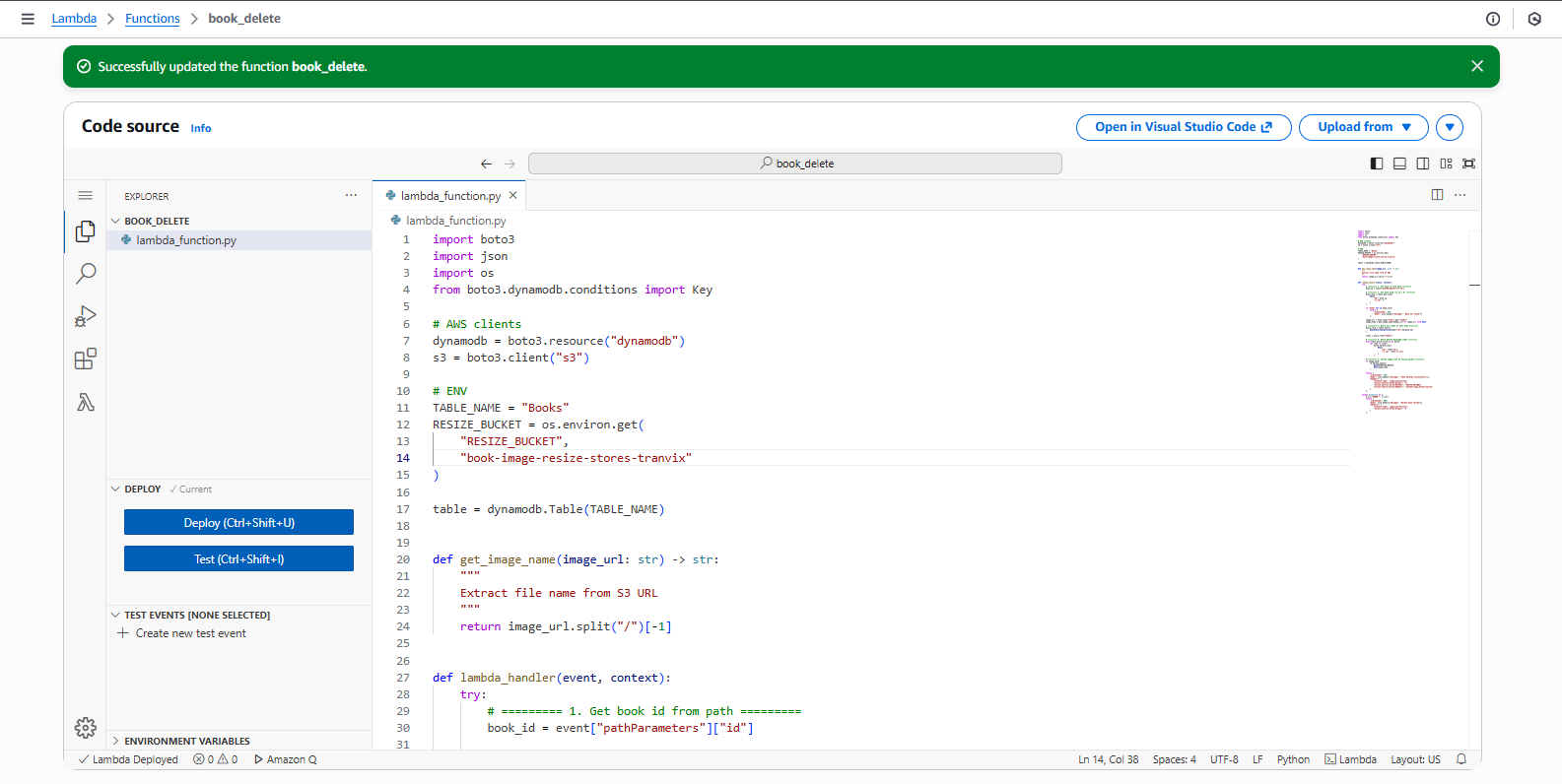
Sao chép đoạn code dưới đây và dán vào mục lambda_function.py
import boto3
import json
import os
from boto3.dynamodb.conditions import Key

# AWS clients
dynamodb = boto3.resource("dynamodb")
s3 = boto3.client("s3")

# ENV
TABLE_NAME = "Books"
RESIZE_BUCKET = os.environ.get(
    "RESIZE_BUCKET",
    "book-image-resize-stores-tranvix"
)

table = dynamodb.Table(TABLE_NAME)


def get_image_name(image_url: str) -> str:
    """
    Extract file name from S3 URL
    """
    return image_url.split("/")[-1]


def lambda_handler(event, context):
    try:
        # ========= 1. Get book id from path =========
        book_id = event["pathParameters"]["id"]

        # ========= 2. Get book item (rv_id = 0) =========
        book_resp = table.get_item(
            Key={
                "id": book_id,
                "rv_id": 0
            }
        )

        if "Item" not in book_resp:
            return {
                "statusCode": 404,
                "body": json.dumps({"message": "Book not found"})
            }

        image_url = book_resp["Item"].get("image")
        image_name = get_image_name(image_url) if image_url else None

        # ========= 3. Query ALL items of this book =========
        query_resp = table.query(
            KeyConditionExpression=Key("id").eq(book_id)
        )

        items = query_resp["Items"]

        # ========= 4. Batch delete DynamoDB items =========
        with table.batch_writer() as batch:
            for item in items:
                batch.delete_item(
                    Key={
                        "id": item["id"],
                        "rv_id": item["rv_id"]
                    }
                )

        # ========= 5. Delete image from S3 resize bucket =========
        if image_name:
            s3.delete_object(
                Bucket=RESIZE_BUCKET,
                Key=image_name
            )

        return {
            "statusCode": 200,
            "body": json.dumps({"message": "Book deleted successfully"}),
            "headers": {
                "Content-Type": "application/json",
                "Access-Control-Allow-Origin": "*",
                "Access-Control-Allow-Methods": "DELETE,OPTIONS",
                "Access-Control-Allow-Headers": "Content-Type,Authorization"
            }
        }

    except Exception as e:
        print("ERROR:", str(e))
        return {
            "statusCode": 500,
            "body": json.dumps({"message": "Delete book failed"}),
            "headers": {
                "Content-Type": "application/json",
                "Access-Control-Allow-Origin": "*"
            }
        }
- Ấn nút Deploy
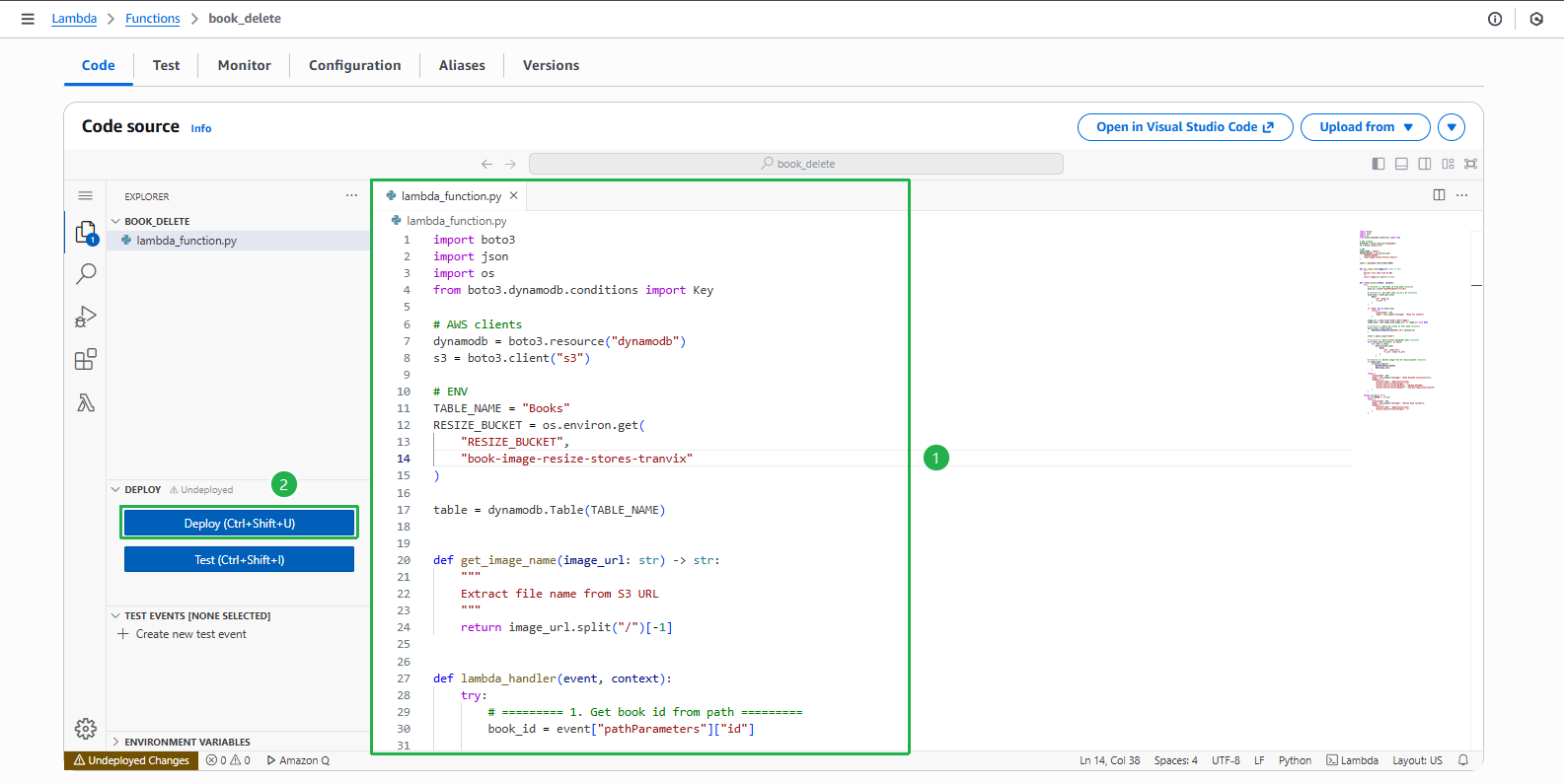
Function đã được deploy thành công
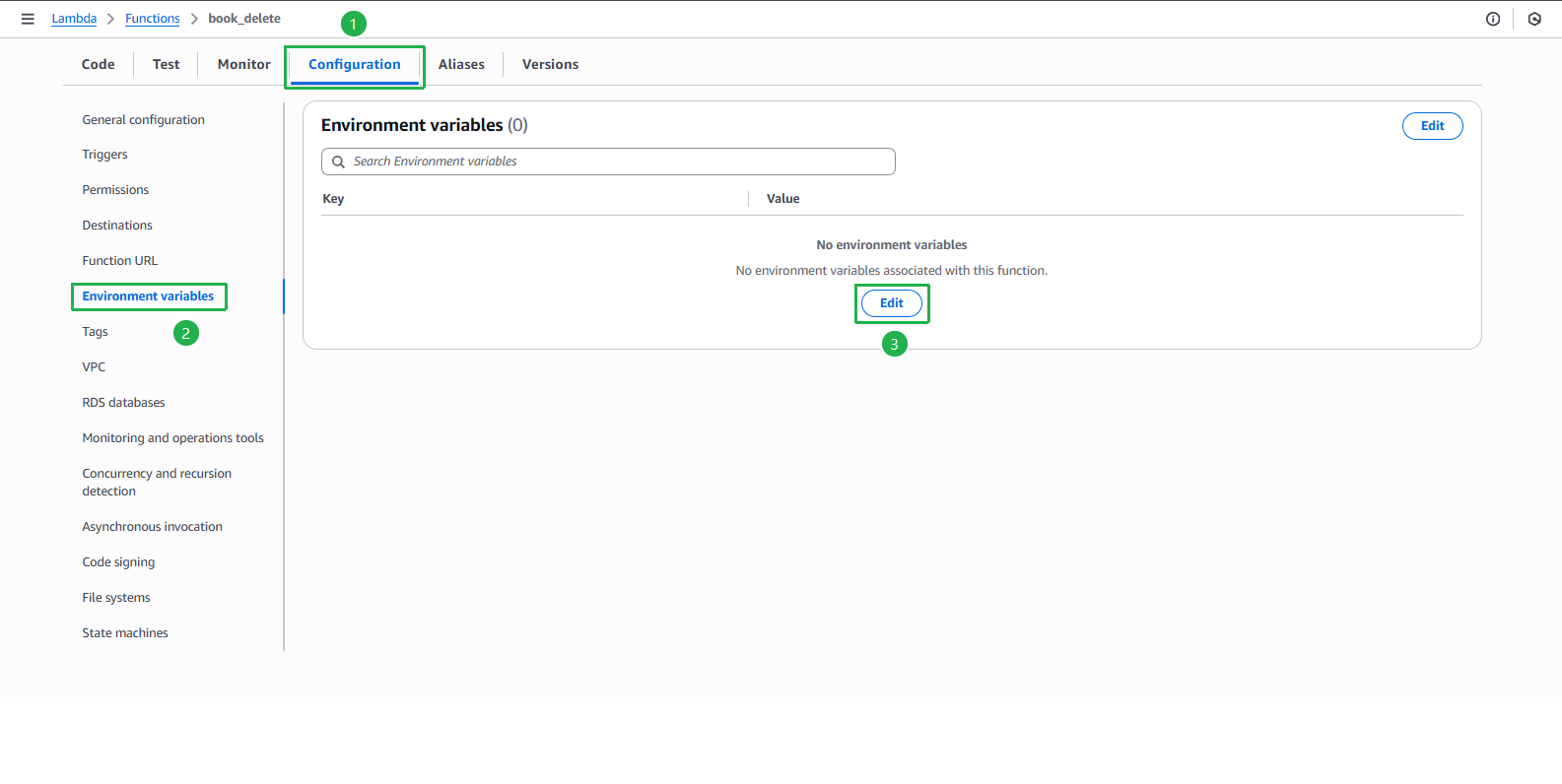
Cấu hình biến môi trường cho Lambda function
- Ấn sang tab Configuration
- Chọn mục Environment variables ở menu bên trái
- Ấn nút Edit
Thêm biến môi trường sau:
- RESIZE_BUCKET: tên bucket lưu ảnh resize (ví dụ:
book-image-resize-stores-tranvix) - Ấn nút Save
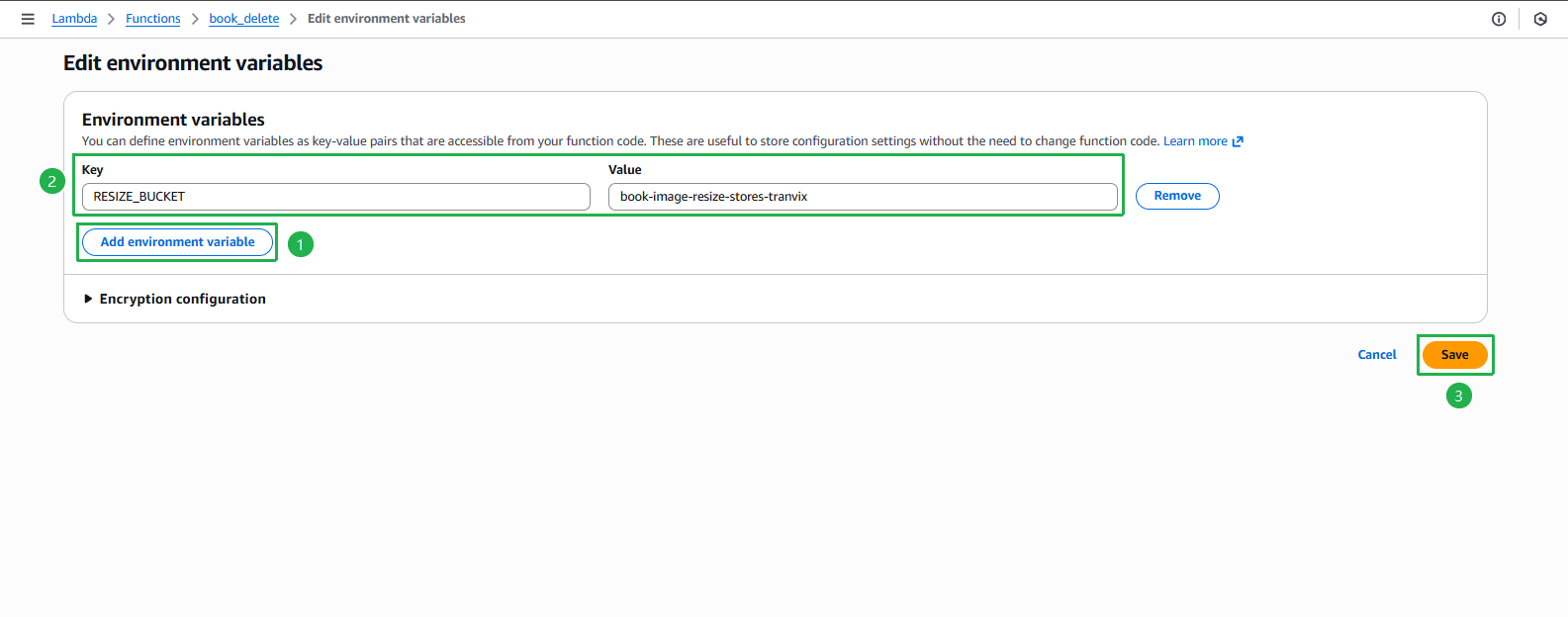
- RESIZE_BUCKET: tên bucket lưu ảnh resize (ví dụ:
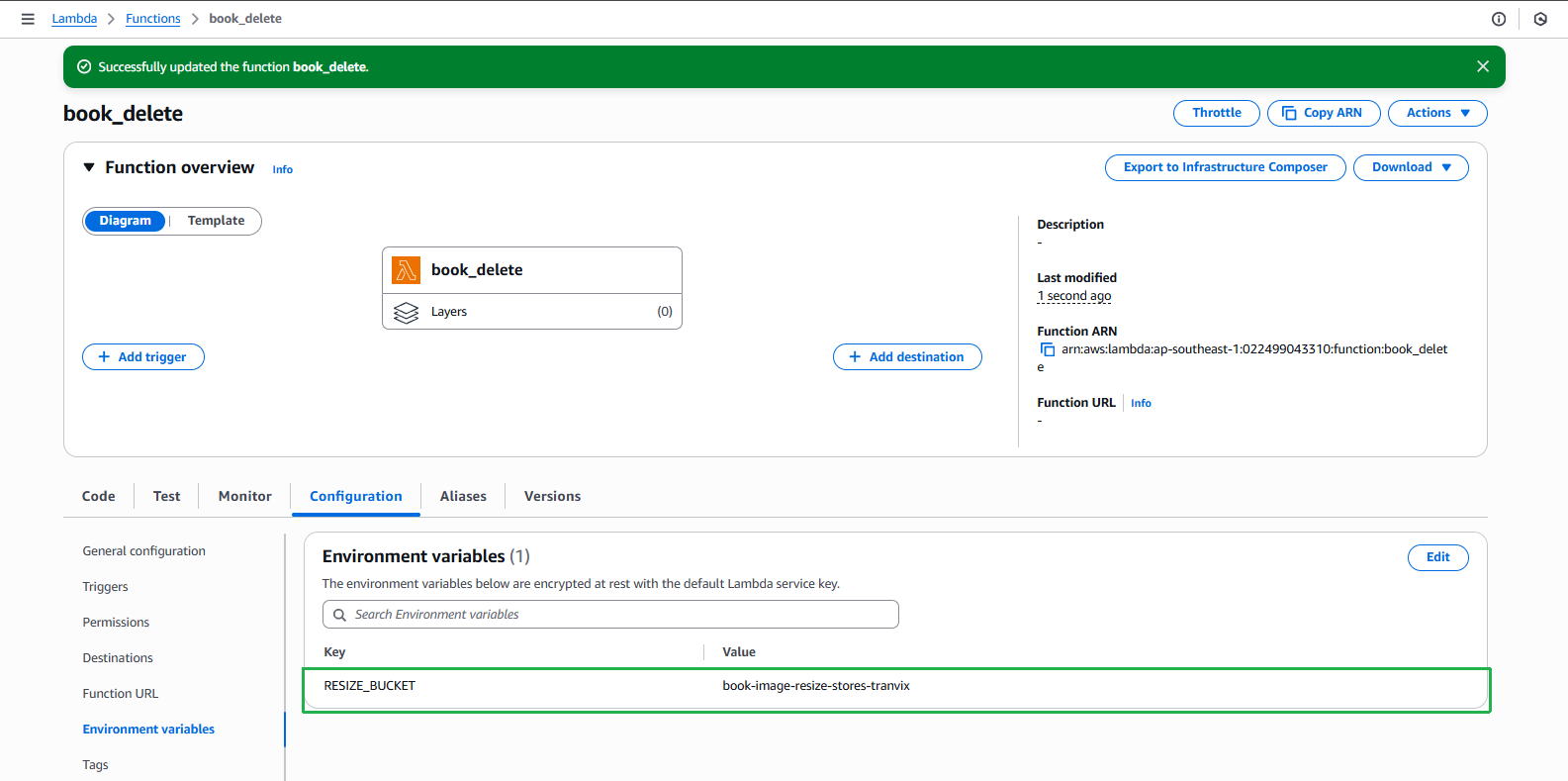
Xác nhận biến môi trường đã được cập nhật thành công
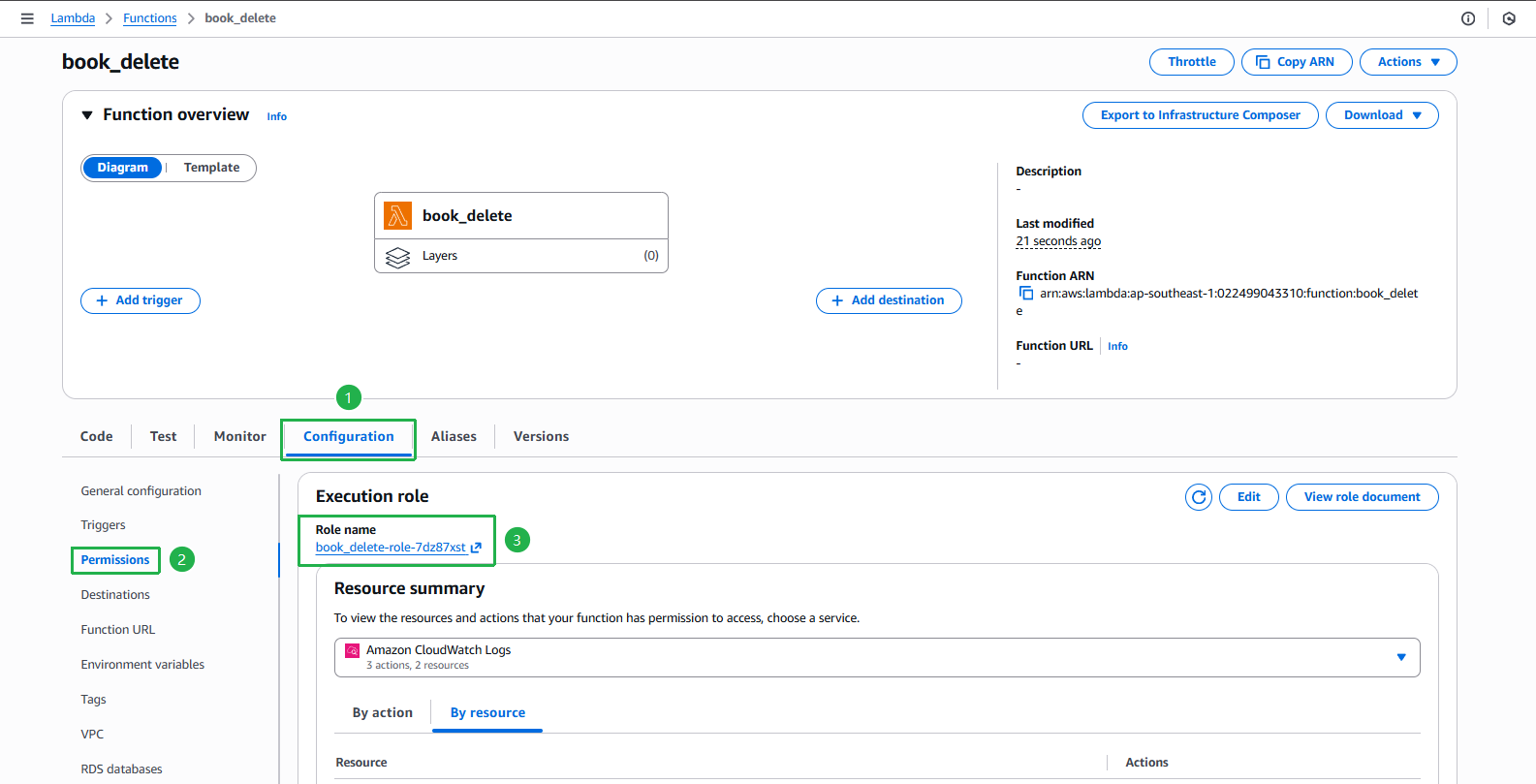
Cấp quyền cho function có thể đọc và xoá dữ liệu từ DynamoDB và xoá object trong S3 bucket
- Chọn mục Permissions ở menu phía bên trái
- Ấn vào role mà function đang sử dụng
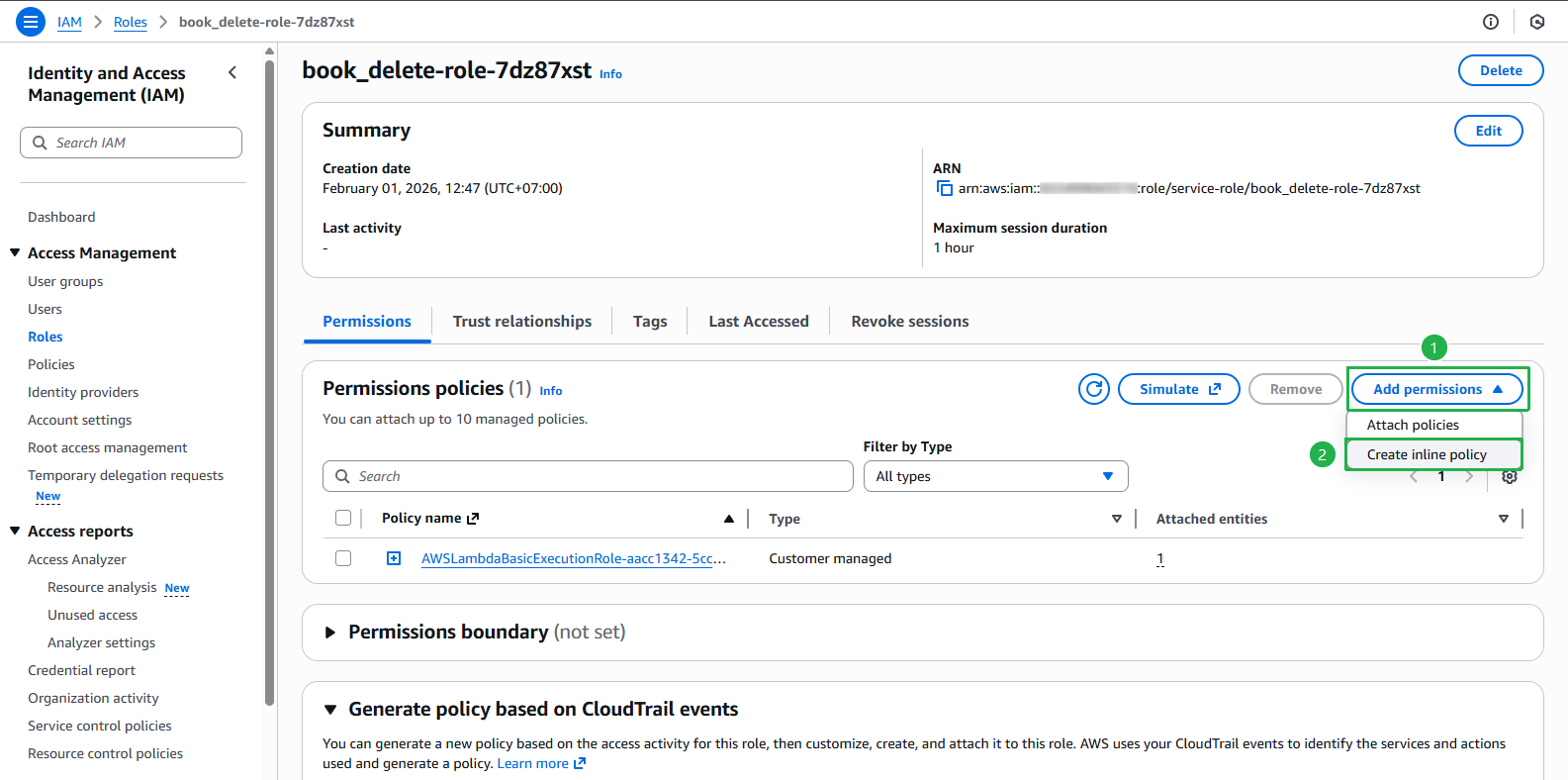
Tại trang IAM Role, ấn nút Add permissions > Create inline policy
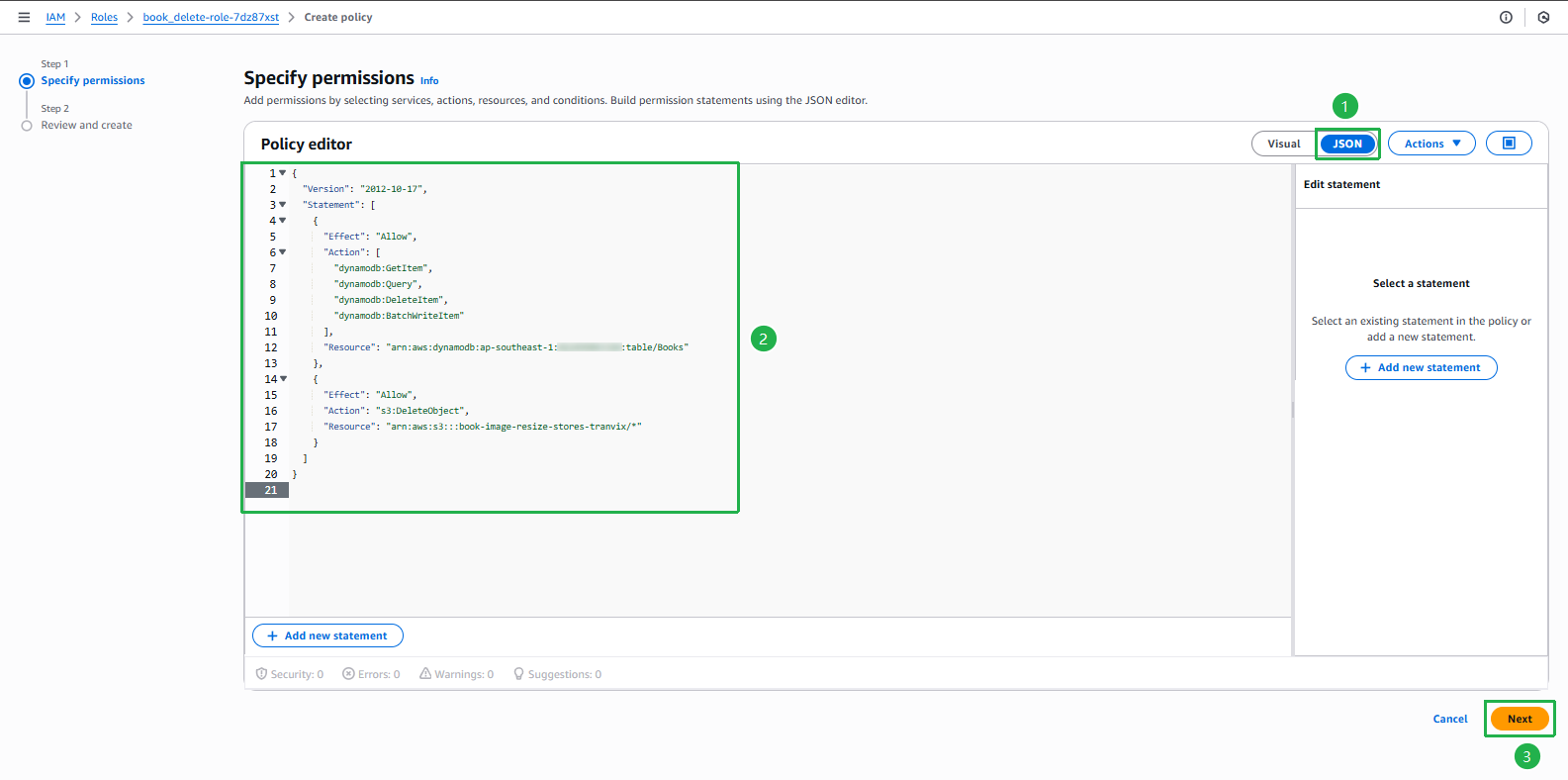
Chọn tab JSON và thêm đoạn policy sau:
{
  "Version": "2012-10-17",
  "Statement": [
    {
      "Effect": "Allow",
      "Action": [
        "dynamodb:GetItem",
        "dynamodb:Query",
        "dynamodb:DeleteItem",
        "dynamodb:BatchWriteItem"
      ],
      "Resource": "arn:aws:dynamodb:AWS_REGION:ACCOUNT_ID:table/Books"
    },
    {
      "Effect": "Allow",
      "Action": "s3:DeleteObject",
      "Resource": "arn:aws:s3:::YOUR_BUCKET_NAME/*"
    }
  ]
}
- Thay AWS_REGION bằng vùng mà bạn tạo bảng trong DynamoDB, ví dụ: ap-southeast-2
- Thay ACCOUNT_ID bằng id tài khoản của bạn
- Thay YOUR_BUCKET_NAME bằng tên bucket chứa ảnh resize
- Ấn nút Next
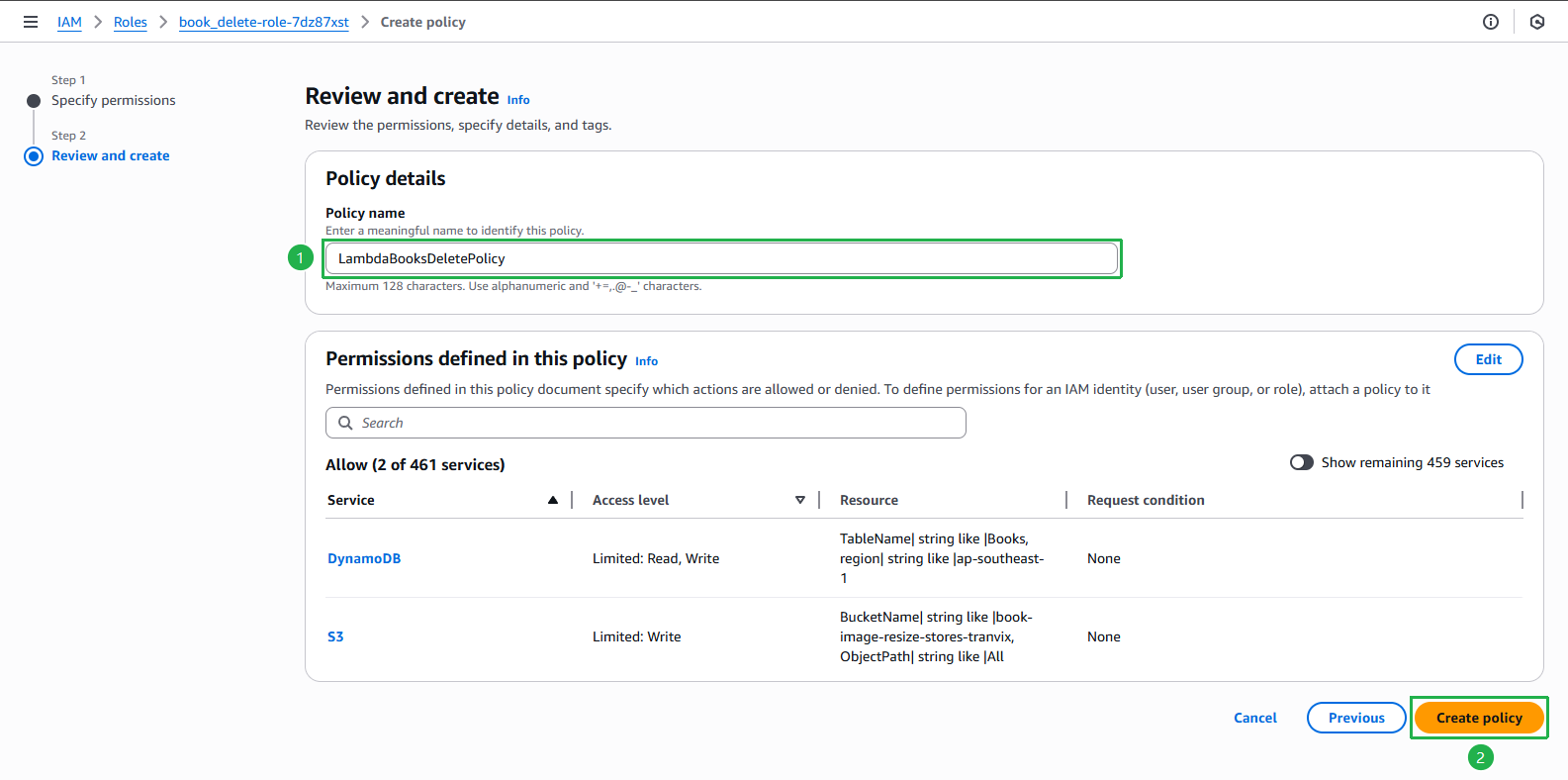
Nhập tên cho policy, ví dụ: LambdaBooksDeletePolicy
- Xem lại các quyền đã cấu hình
- Ấn nút Create policy
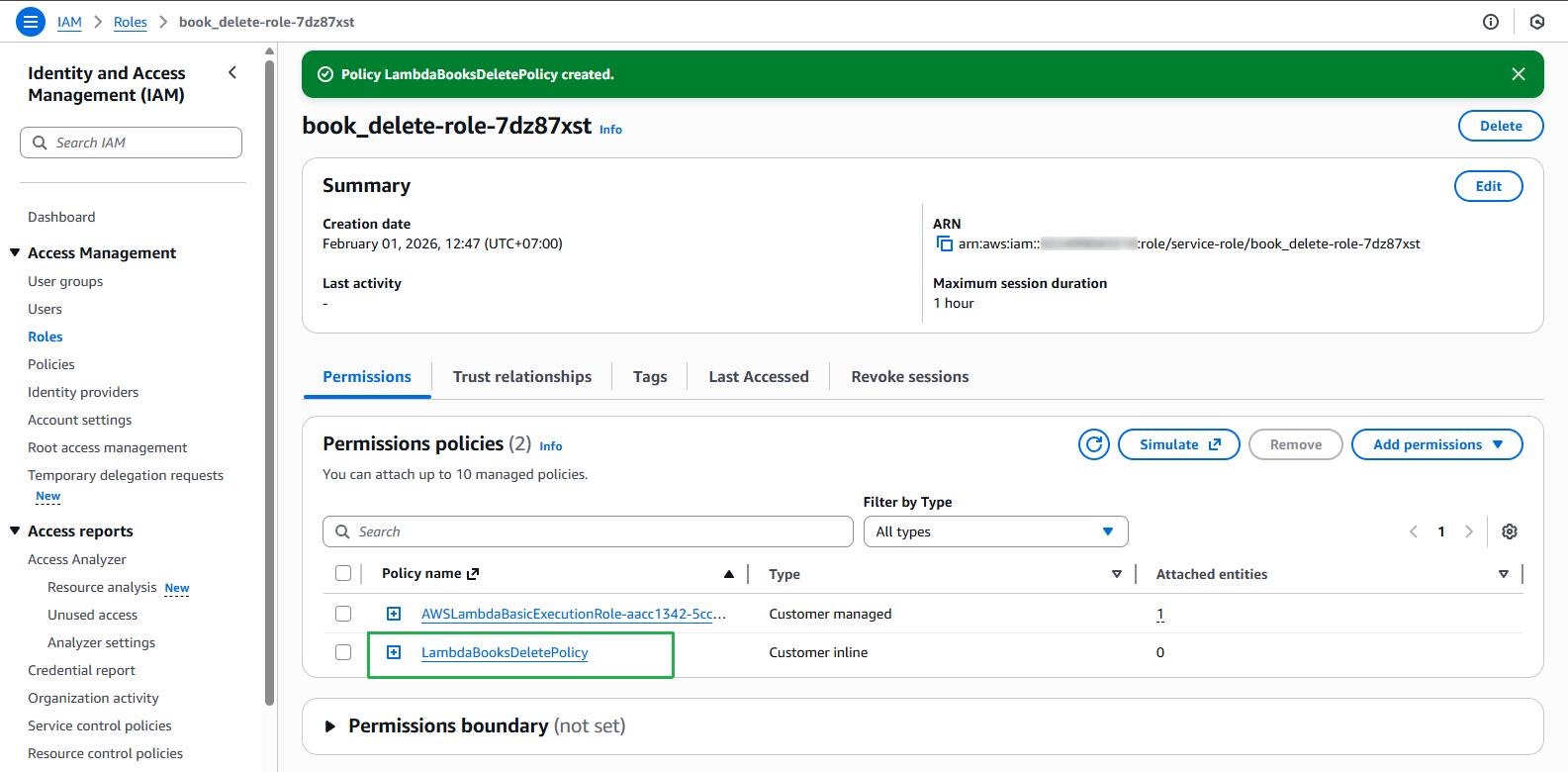
Policy đã được tạo thành công và đã được gắn vào role